
Residue Repair
Strip the green haze and speckles off sprites you've already cut out — the content stays untouched.
Summary
"Residue Repair" is not keying — it's a repair tool for images you've already cut out, where a green haze or a "halo" still clings to the edge. That typically happens when an AI sprite gets upscaled after cut-out (e.g. 9×) and the upscaling smears leftover green into the edge.
The tool works band-limited: it only touches pixels at the transition to transparency (the silhouette fringe, reach = the Fringe depth slider) plus isolated green speckles. The sprite's actual content stays untouched.
When to use it
- You've already cut out a sprite (transparent background), but a green fringe or scattered green dots still show along the edge.
- The sprite was upscaled after cut-out and picked up a several-pixel-deep, smeared green fringe.
- You need either a soft, edge-preserving look or a crisp, guaranteed green-free pixel-art edge.
If instead you want to remove a green screen that hasn't been cut out yet, reach for a keying profile (Green Sprite or Green Sprite (hard)) — not this tool.
How it works
There are two modes:
- Detox (soft, default): pulls the green cast out of the fringe (despill
g→max(r,b)), preserving soft edges/gradients and alpha. Bright, saturated green (i.e. real content like lettering or objects) is protected. The Keep soft edges (no-delete) switch makes sure soft edges survive in full — isolated speckles still get removed. - Crisp Outline: recolors the green fringe from the nearest non-green neighbor (sampled locally — a black outline stays black, a colored edge keeps its color) and snaps the alpha hard → a clean, dark pixel-art edge, guaranteed green-free.
Both modes share one thing: isolated green islands hanging off the transparency are set to transparent; everything else stays confined to the fringe band.
Settings
| Slider | Effect |
|---|---|
| Mode | Detox (soft) (default) preserves soft edges; Crisp Outline forces a green-free, hard edge. |
| Strength | Off / Conservative / Normal (default) / Strong. Scales island size and despill intensity. Strong is the most thorough, but not the global default (see below). |
| Fringe depth | How far into the image the fringe is treated. Default 8; up to 16 for extreme cases. At 1 it's practically ineffective on 9× assets. |
| Keep soft edges (no-delete) | Preserves soft half-transparency in full; still removes isolated speckles. |
| Tolerance | Grayed out / ineffective on the green key (see FAQ). |
GUI preset "Repair 9× fringe": sets Strong + Fringe depth 12 (Mode still your choice) — the fast path for heavily upscaled assets.
Recommended settings by use case:
| Asset type | Recommendation |
|---|---|
| 9×/upscaled sprite, soft look | Detox + Strong + Fringe depth 8–12 |
| 9×/upscaled sprite, crisp pixel-art edge | Crisp Outline + Strong + Fringe depth 8–12 |
| Asset with green content (lettering, plants), keep soft edges | Detox + Normal/Strong, Keep soft edges if needed |
| Small, non-upscaled sprite | Conservative/Normal (Strong can eat small green elements) |
| 100% green-free required (zoom/print) | Crisp Outline (Detox leaves a bright remnant) |
CLI / Automation
Headless, the same repair — invocation and shared flags in the CLI overview. You pick this
profile with --profile residue.
Relevant flags (mirroring the sliders above): --residue-mode {detox,outline} (Detox / Crisp
Outline), --residue-strength {off,conservative,normal,strong} (Strength), --residue-fringe PX
(Fringe depth, default 8, up to 16) and --residue-no-delete (Keep soft edges — no-delete).
Optionally --stamp-metadata embeds the parameters as PNG metadata. On the green key,
--key-tolerance has no effect (see FAQ).
Example (= GUI preset "Repair 9× fringe"):
clean_sprite_chromakey.py sprite.png sprite_clean.png --profile residue --residue-mode detox --residue-strength strong --residue-fringe 12
FAQ
Why does Tolerance do nothing?
On the green key, green detection runs on "green is the max channel" (g>r & g>b), not distance to
the key color. That's by design: the residual spill on cut-out assets is a desaturated green that
would fall outside any sensible tolerance — green-dominance catches it regardless. That's why the GUI
grays out the Tolerance slider in the residue profile on the green key.
At high zoom I still see green pixels after Detox! At native display size (game size) the remaining bright fringe residue is practically invisible (measured: 57–103 px of green fringe at 1/6 size → 2–8 px after treatment). For pixel-perfect green-free at high zoom, use the Crisp Outline.
Why does "Conservative" look more aggressive than "Strong" on the Crisp Outline? On the outline, Strength controls edge thickness (via the alpha snap): Conservative deletes the most half-transparency (thinnest edge), Strong keeps the most as an opaque outline (thickest edge). It's intuitively inverted, but correct.
What do the three result numbers (removed / cleaned / left) mean? Removed = pixels set to transparent (islands, ghost cut, outline clear). Cleaned = de-greened (Detox) or hard-opaque-snapped (Outline) pixels. Left = remaining half-transparent pixels. On the Outline, left is constant (hard snap) — that's not a bug.
I get different results with the same settings — why? The tool is deterministic: same parameters + same original ⇒ byte-identical result. Always process from the original. Running an already-cleaned output through again gives different numbers and makes comparisons worthless.
Limits
- Deep interior contamination (green farther from the transparency than the fringe depth) is left in place on purpose — it's invisible against transparency and usually real content green. Best fix (workflow): cut out before upscaling.
- Bright fringe residue after Detox: bright fringe residue is chromatically identical to content green — no brightness or distance criterion can separate the two. Detox therefore protects bright green (and leaves a bright remnant); if you need 100% green-free, use the Crisp Outline.
- Non-green dirt (gray/white stray pixels) is invisible to the green mask and isn't removed.
- Magenta/Custom keys: in the residue profile the tool works there via key distance with only a gentle ghost cut; the full effect of the two modes unfolds on the green key.
Examples
Settings for the examples: Strength Strong, Fringe depth 12 (= preset "Repair 9× fringe").
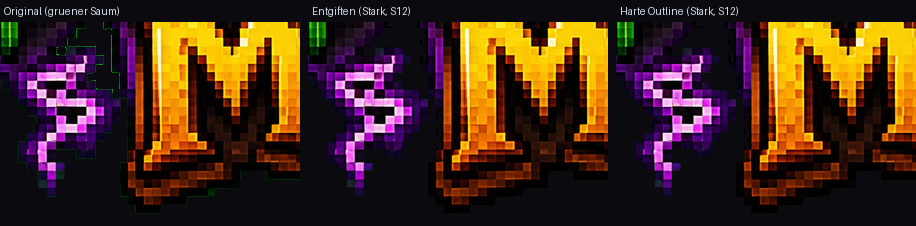
Fringe zoom: left original with a green frayed fringe, middle Detox, right Crisp Outline.

Native game size: at real display size the result is game-ready.
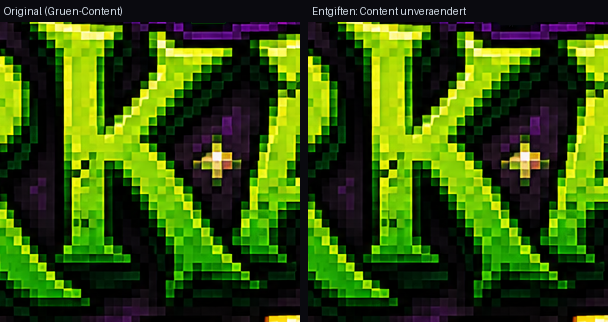
Content protection: green lettering/objects stay untouched under Detox.
Related features
- Green Sprite (hard, content-safe) — removes a still-present green background with a hard edge (keying, not repair).
- Green Sprite — the standard green-screen keying for pixel-art sprites.