
Green Sprite (hard, content-safe)
Remove a green screen without eating green subject matter: only edge-connected green goes, enclosed interior green stays.
Summary
Green Sprite (hard, content-safe) cuts out green-keyed assets where green is also a subject color (e.g. green pixel lettering or green eyes on a green key). It removes only the background green that's connected to the image border and leaves enclosed interior green standing — with hard pixel-art edges and an optional green fringe despill for smooth/anti-aliased assets.
When to use it
- Your asset has a green background, but the subject also contains green that has to stay.
- You need hard, pixel-exact edges (pixel art) — or a clean despill on a smooth/AA edge.
- The classic Green Sprite would eat the subject green along with the background.
When not this profile:
- No green in the subject → the simpler Green Sprite is enough.
- Already cut out, only residue left at the edge → Residue Repair.
- Translucent glow/FX effects → FX / Glow (Soft Matte).
How it works
The profile floods inward from the image border through connected green (the edge-connected key mask) and removes only this background green. A tight tolerance protects differently-toned subject green even where it touches the background directly; the edge-connected flood stops at non-green outlines. Enclosed interior green (e.g. the sprite's belly, green lettering) stays untouched.
The edge is set hard (alpha 0/255) — the pixel-art invariant. For smooth or anti-aliased assets you can additionally switch on a green fringe despill at the alpha edge.
Settings
| Slider | Effect |
|---|---|
| Key color | The background key color. Default #00FF00; pick it from the image with the eyedropper — on a tinted key (e.g. (26,200,26)) pick from the background, not pure #00FF00. |
| Tolerance | How tightly key detection bites. Tight by default — tight enough to protect subject green that sits close to the key. |
| Edge cleanup | Leave off for pixel art (hard edges). Turn on for smooth/AA assets → green fringe despill at the edge. |
| Spill radius / Spill strength | Width (1–4) and aggressiveness (Soft/Normal/Strong/Maximum) of the optional fringe despill. |
Recommended settings by use case:
| Asset type | Recommendation |
|---|---|
| Pixel art, green lettering on a green key | Tight + Edge cleanup off (hard edge, interior green stays) |
| Smooth/AA illustration, enclosed green eyes | Edge cleanup on + Spill Normal (fringe despill) |
| Subject green sits very close to the key tone | Keep Tolerance tight, pick the key precisely from the BG with the eyedropper |
CLI / Automation
Headless, the same content-safe keying — invocation and shared flags in the CLI overview. You
pick this profile with --profile green_hard.
Relevant flags: --key-color (on a tinted key, give the real BG color, e.g. 26,200,26),
--key-tolerance 0–160 (keep it tight — protects subject green), --edge-cleanup {on,off} (off for
pixel art, on for smooth/AA assets = fringe despill) plus --spill-radius / --spill-strength.
Example:
clean_sprite_chromakey.py sprite.png sprite_out.png --profile green_hard --key-color 26,200,26 --edge-cleanup off
FAQ
How is it different from the normal Green Sprite? Green Sprite removes all green globally. This profile removes only edge-connected background green and protects enclosed subject green — the difference when green also shows up in the subject.
The interior green stays, but a thin green fringe still bugs me. Turn Edge cleanup on — the fringe despill pulls the green cast out of the alpha edge. On already cut-out assets, Residue Repair takes over.
Why "pick from the background" and not #00FF00?
Many assets aren't keyed on pure #00FF00 but on a tinted green. Pick the real BG color with the
eyedropper and the tight tolerance bites precisely, and the edge-connected flood is reliable.
Limits
- Hard alpha (0/255) — no fractional soft matte. For translucent effects, FX / Glow is in charge.
- Subject green that has the exact same tone as the background and is edge-connected to it can't always be separated — a tighter tolerance or a second pass with Residue Repair helps here.
- No scaling / no resampling.
Examples
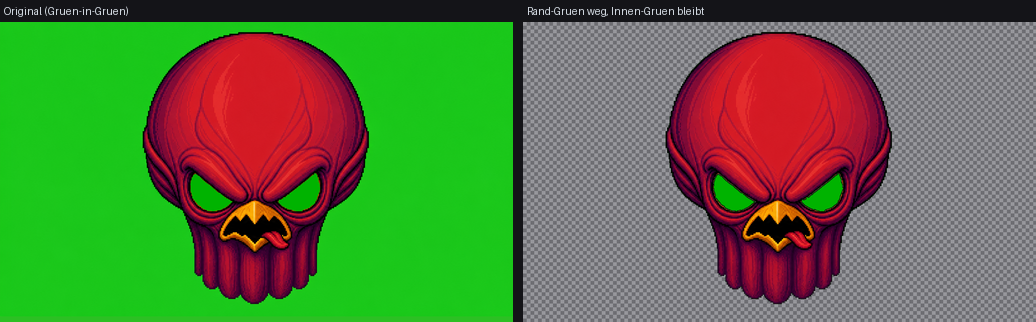
Only edge-connected green is removed — green content (here eyes/mouth) is preserved.
Related features
- Green Sprite — the global green-screen remover (green is only the background).
- Residue Repair — clean up green residue on already cut-out assets (a second pass after this profile).