
Pixelize — turn AI art into true pixel art (pixel-art converter)
Fix blurry, anti-aliased AI and painted art into true pixel art — a real low-res grid, console-authentic palettes, clean flat areas. Deterministic and fully offline.
MutaSprite itself is free. Pixelize is a one-time €12 module (or included in the €19 Studio-Kit) — this page explains what it does. Whatever you make with it is yours to use commercially — in your own game or client work.
Working from AI-generated art? Fix AI-generated pixel art walks through the whole workflow — why AI output breaks in an engine and how to get a game-ready sprite out of it.
Summary
Pixelize converts painterly or AI-generated assets (from backgrounds to characters) into real classic pixel art: low target resolution + a curated, limited palette + clean flat areas, in several modes. It's a standalone operation alongside chroma-key, UnDetail and Asset Slice — and does not replace the block-based "Pixel-art UnDetail".
When to use it
- You have a painted or AI-generated image and want to make an intentional pixel-art sprite or a pixel background from it.
- You want a specific retro look (DawnBringer 16, PICO-8, Game Boy) or a console color grid (Mega Drive, SNES).
- You need a coherent, small palette instead of a mushy posterization.
When not Pixelize:
- You only want to reduce / coarsen detail without a curated palette → Pixel-art UnDetail (block mosaic).
- You want to cut out → a chroma-key profile.
How it works
Pixelize runs a deterministic pipeline (same parameters ⇒ byte-identical result):
- Downscale to the target resolution (high-quality area resampling). Crispness comes mostly from low resolution + a limited palette.
- Determine the palette — Auto (median-cut in the perceptual Oklab space onto K colors), a fixed art palette, or a console profile (auto palette, then snap to the console's channel grid).
- Map each pixel onto the nearest palette color, optionally with dithering.
- Set alpha cleanly (hard or kept).
- Output as a small sprite, optionally integer × N upscaled.
Before the downscale, Auto-Crop can trim the image to the alpha bounding box so a character uses the full target resolution.
Settings
| Slider | Effect |
|---|---|
| Mode / Preset | Clean Flat (default) · Retro (DB16) · Painterly→Pixel · Mega Drive · SNES · Custom. Loads tuned parameter bundles. |
| Resolution | Target resolution px (presets 48/64/96/128/256, default 128; up to 512 by opt-in; manual 8–1024) or Factor (2/3/4/6/8). |
| Palette | Auto (K colors) · fixed palette (DawnBringer 16, PICO-8, Game Boy DMG) · console (Mega Drive 3-bit, SNES 5-bit). |
| Colors (K) | Palette size for Auto/console: presets 8/16/24/32/48/64, default 24; up to 512 by opt-in (slow). |
| Dithering | Off (default) · Bayer 2×2 · Bayer 4×4 · Floyd-Steinberg. |
| Alpha | Hard (default, threshold 128) or Keep alpha. |
| Auto-Crop | Trim to the alpha content before the downscale (default on). |
| Upscale / Output | Integer upscale ×1/2/4/8; output Small image / Upscaled / Both. |
Recommended settings by use case:
| Goal | Recommendation |
|---|---|
| Clean flat pixel character | Clean Flat (px 128, Auto K=24, no dither) |
| Retro look with character | Retro (DB16) or Painterly→Pixel (light dither) |
| Authentic console look | Mega Drive (3-bit) or SNES (5-bit) |
| Very fine facial detail | px 128 instead of 64 (64 is often too coarse for faces) |
CLI / Automation
Headless, the same pixeling — invocation and positional arguments in the CLI overview. You pick
this operation with --operation pixelize.
Relevant flags (mirroring the sliders above): --pixelize-palette {auto,db16,pico8,gameboy,md,snes},
--pixelize-res-mode {px,factor} with --pixelize-target-px or --pixelize-factor,
--pixelize-colors K, --pixelize-dither {off,bayer2,bayer4,floyd}, --pixelize-alpha {hard,preserve}
with --pixelize-alpha-threshold 1–255, --pixelize-autocrop / --no-pixelize-autocrop plus
upscale/output via --pixelize-upscale N and --pixelize-output {small,upscaled,both}.
Example:
clean_sprite_chromakey.py paint.png paint_px.png --operation pixelize --pixelize-palette auto --pixelize-target-px 128 --pixelize-colors 24
FAQ
What's the difference from "Pixel-art UnDetail"? UnDetail is a block mosaic + per-channel posterize — it has no coherent palette and no target resolution. Pixelize delivers intentional pixel art with a curated, limited palette and a real low-resolution grid. Both stay as separate tools.
Why do I always get the same result with the same settings? Pixelize is deterministic — the auto palette uses median-cut (not k-means), so the regression tests stay byte-exact.
Why are 512 px / 512 colors marked with a warning? Both are opt-in, because very large resolution × palette is noticeably slower. The mapping is memory-light (chunked), so large combinations don't blow up memory — they just take longer.
What about a dark outline around the sprite? A selective Pixelize outline is deliberately deferred to a later version (v1.1) and is not in this version.
Limits
- No outline (dark outline along the shape) in v1 — deferred to v1.1.
- No custom loadable palettes (.pal/.hex) and no shadow hue-shift in this version.
- No cross-frame palette for animation sheets.
- 64 px is often too coarse for fine facial detail — 128 px is the more robust default.
Examples
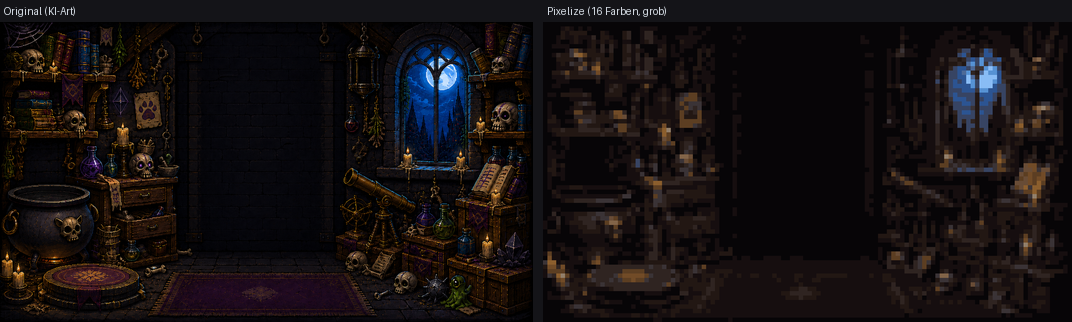
Reduction to a target resolution + a limited palette — rendered/AI art becomes classic pixel art.
Related features
- Pixel-art UnDetail — the block-based coarsening (without a curated palette), the distinct sister operation.