
Custom Color
Remove any key color via a distance tolerance — for backgrounds that are neither green nor magenta.
Summary
Custom Color removes a freely chosen key color through a generic color-distance mode: every pixel within an adjustable Tolerance around the chosen color becomes transparent. It's the special-case key for backgrounds that are neither green nor magenta.
When to use it
- Your background has a different key color (e.g. blue, cyan, a particular shade of gray).
- The specialized green/magenta profiles don't fit, but you want to remove one specific color.
When not Custom Color:
- Green screen → Green Sprite (or the hard, content-safe profile).
- Magenta key → the Magenta profiles (with their magenta-tuned edge rules).
- Translucent effects with soft alpha → FX / Glow (Soft Matte).
How it works
Custom Color compares every pixel against the chosen Key color and removes it when the color distance falls below the set Tolerance. Unlike the green/magenta profiles, Custom uses no profile-bound special rule, just plain distance — which is why the Tolerance slider is effective here (it drives Custom and auto-custom keying).
Optionally, the Edge cleanup tidies the edge fringe (spill radius/strength).
Settings
| Slider | Effect |
|---|---|
| Key color | The color to remove — pick it from the image with the eyedropper (optional 3×3 average). |
| Tolerance | How far the distance around the Key color reaches. Default 48 (range 0–160). Higher = more is removed. |
| Edge cleanup | On (default) fixes the fringe; Off removes only the key pixels. |
| Spill radius | Width of the edge band (1–4, default 2). |
| Spill strength | Soft / Normal / Strong / Maximum. |
Recommended settings by use case:
| Asset type | Recommendation |
|---|---|
| Clearly bounded, uniform key color | Tolerance 48 (default), key via eyedropper |
| Slightly varying background | Raise Tolerance step by step, check the mask |
| Subject color close to the key color | Keep Tolerance low (otherwise it eats the subject) |
CLI / Automation
Headless, the same distance keying — invocation and shared flags in the CLI overview. You pick
this profile with --profile custom.
Relevant flags: --key-color (color to remove, #RRGGBB or R,G,B), --key-tolerance 0–160 (distance
around the Key color, default 48 — effective here), --edge-cleanup {on,off} plus --spill-radius /
--spill-strength.
Example:
clean_sprite_chromakey.py asset.png asset_out.png --profile custom --key-color #3A7BD5 --key-tolerance 48
FAQ
What's the Tolerance slider for — and why only here? Tolerance drives the color distance around the Key color. It's effective for Custom (and auto-custom); the green/magenta special profiles stay on their profile-bound rules, where Tolerance has no effect.
Too much / too little is removed. Adjust the Tolerance and check the result in the mask view — it's the most important QA step. When in doubt, remove too little and sharpen afterwards.
My key is green/magenta — should I use Custom? No, use the specialized profiles: they have edge rules tuned to the respective key color (e.g. dark outline on magenta sprites, green dominance on green).
Limits
- Pure distance key — no profile-bound edge special-rules like green/magenta.
- Subject colors near the key color can't always be cleanly separated by distance (keep Tolerance low).
- No scaling / no resampling.
Examples
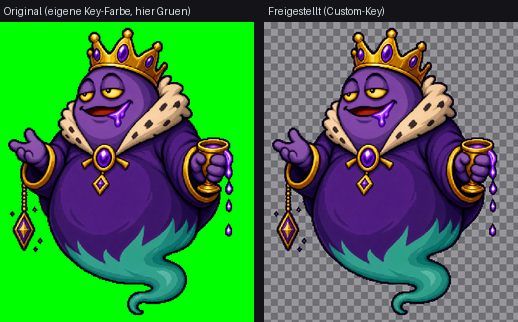
A custom key color (here green) — cut out via the distance tolerance.
Related features
- Auto — measures the key automatically per image (custom keys included) and applies a soft matte.