
Batch processing
Process a whole folder in one run — with an overwrite strategy, file list, report and cancel.
Summary
Batch processing applies a tab's settings to all PNGs in a folder in one run — instead of image by image. It's a cross-cutting capability: every workflow with a Batch tab (chroma-key, UnDetail, Pixelize, Slice) uses the same batch infrastructure with a file list, overwrite strategy, an optional report and cancel.
When to use it
- You have many assets to process with the same settings (e.g. cut out a whole sprite set).
- You want to see a preview of the file list before the run starts.
- You need a log (report) of the run, or want to open the target folder afterwards.
How it works
In the respective Batch tab you pick source and target folders, optionally with subfolders, and
start the run on a worker thread (the UI stays usable, the run is cancellable). Before the start, a
file list shows which PNGs will be processed. After the run, the app reports processed / skipped /
failed.
For existing target files you set an overwrite strategy:
- Overwrite — replace the existing file.
- Skip — leave the existing file in place (counts as "skipped").
- Number — write a new, numbered file alongside it.
Settings
| Slider | Effect |
|---|---|
| Source/target folder | Input folder and output destination; optionally include subfolders. |
| Existing files | Overwrite (default) · Skip · Number. |
| Batch report | Off (default) · TXT · CSV — log of the run. |
| Open target folder | Optionally open the output folder after the run. |
| Presets | Save, load and delete settings — for recurring batch jobs. |
FAQ
Will my existing files be overwritten? Only if the strategy is set to Overwrite (default). With Skip, existing files stay untouched; with Number, a numbered copy is written alongside.
Can I stop a running batch? Yes — the batch runs on a worker thread and can be cancelled without blocking the app.
Do I see beforehand what gets processed? Yes — before the start, the file list shows the included PNGs. A report (TXT/CSV) then documents the run.
Does the batch apply to all operations? Yes — chroma-key, UnDetail, Pixelize and Slice each have a Batch tab with the same batch mechanics (file list, overwrite strategy, report, cancel).
Limits
- One setting per run — the batch applies the current tab settings to all files (no per-file parameters).
- PNG inputs only, as in single mode.
Examples
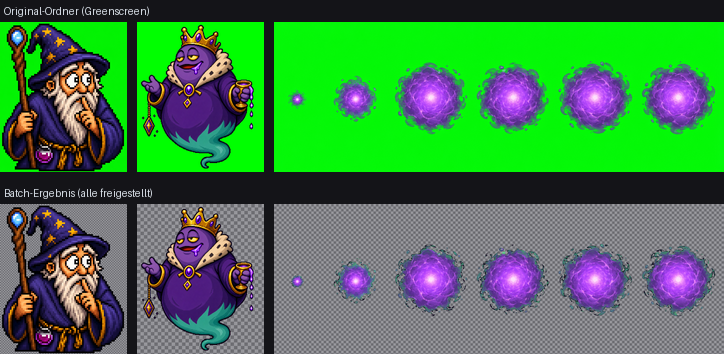
The same settings on many files in one run.
Related features
- Green Sprite — the most common profile for batch cut-out.
- Pixel-art UnDetail — also batch-capable.